Key facts
- Find the correct Allwinner firmware and USB driver, identify an A523 or A100 device, and flash a verified image without guessing the board package.
- Read the rear label, box, invoice, recovery screen, or About tablet page.
- Marketing names are often reused across hardware revisions.
An Allwinner chip name is not a complete firmware identity. Two tablets can use the same A523, A100, A133, A64, A33, A23, or A13 processor and still require different boot files, memory settings, touch-panel drivers, display configuration, cameras, Wi-Fi firmware, and partition layouts. The safe download is the package released for the exact finished device and board revision.
Before flashing: back up every file you can still access. A full image write can erase user data, accounts, app storage, and device-specific calibration. Do not use an image selected only by the Allwinner processor name.
Before downloading Allwinner firmware
Start with the device manufacturer, not with a generic firmware archive. Look for a support page, service package, recovery image, or update instructions that name the exact product code. If the manufacturer provides a tool and driver bundle with the image, keep those files together.
- Record the full model code. Read the rear label, box, invoice, recovery screen, or About tablet page. Marketing names are often reused across hardware revisions.
- Record the board revision. If the device no longer boots and opening it is appropriate, note the printed PCB identifier and revision. Do not rely only on the large A523 or A100 marking on the processor.
- Match RAM and storage. Different memory chips may need different initialization data even when the processor and enclosure match.
- Check the package format. A vendor may supply a proprietary
.imgimage, an SD-card package, an OTA ZIP, or separate engineering files. These formats are not interchangeable. - Verify the source. Prefer the device vendor, its authorized service channel, or the board supplier. A filename containing the processor number is not proof of compatibility.
How to identify the exact device and board
If Android still starts, save screenshots of the model, build number, Android version, storage capacity, and kernel information. An ADB property report can add useful identifiers without changing the device:
adb shell getprop ro.product.manufacturer
adb shell getprop ro.product.model
adb shell getprop ro.product.device
adb shell getprop ro.build.display.id
adb shell getprop ro.board.platform
These values help you search, but they do not override the hardware label. Vendors sometimes reuse or misconfigure Android properties. If the tablet is dead, use the model sticker, service documentation, PCB code, storage capacity, and clear board photos when asking the manufacturer or repair service for the correct package.
| Identifier | Where to find it | Why it matters |
|---|---|---|
| Brand and full model | Rear label, box, Settings | Primary support and firmware lookup |
| Board code and revision | PCB printing or service manual | Separates visually identical hardware variants |
| RAM and storage capacity | Settings, label, service specification | May change memory initialization and partition layout |
| Current build number | Settings or recovery | Helps distinguish regional and vendor software branches |
| USB hardware ID | Windows Device Manager, Details tab | Confirms what Windows detects and which driver package applies |
Allwinner A523, A100, A133, and legacy firmware
Allwinner describes the A523 as an octa-core Cortex-A55 tablet platform that can run Android or Tina Linux and supports several memory types. That range is exactly why an “A523 firmware download” cannot be universal. The board maker chooses the RAM, storage, display, camera, wireless module, power management, and boot configuration.
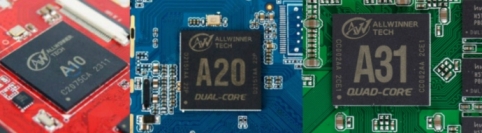
The same rule applies when a search result says A100, A133, A64, A33, A23, A13, or A10. A processor family identifies only part of the design. For example, the official A133 page lists support for several memory standards and many interfaces, but it does not provide a single retail-tablet image.
Allwinner's official customer platform provides product packages, SDKs, patches, documentation, and development tools to authorized enterprise customers. Its public guide states that access is intended for Allwinner partners and enterprise developers, not general individual downloads. A consumer should therefore request the finished firmware image from the tablet or device manufacturer. An SoC vendor SDK is not a replacement for that device image.
| Your search | What you still need before downloading |
|---|---|
| Allwinner A523 firmware | Finished-device model, PCB revision, RAM/storage variant, regional build, vendor flashing method |
| Allwinner A100 firmware | Exact product and board identity; do not assume another A-series image is compatible |
| Allwinner A523 driver | The USB driver supplied for the vendor's flashing tool, plus the device's detected hardware ID |
| Allwinner firmware download | An OEM or authorized-service source that names the exact device |
Choose the flashing method supplied with the image
Allwinner devices have used several flashing workflows. The package documentation should decide which one to use. Do not convert a package or switch tools only because another program looks newer.
| Method | Typical use | Important limitation |
|---|---|---|
| PhoenixSuit | Windows utility for vendor-provided Allwinner image packages | Use the tool version and USB driver supplied or approved by the device vendor |
| LiveSuit | Older Windows workflow for some legacy Allwinner tablets | Legacy instructions are not automatically valid for A523 or other modern devices |
| PhoenixCard or vendor SD tool | Creates a bootable or production SD card from a compatible image | The card mode and image must match the vendor procedure |
| OTA or recovery update | Installs a signed update from Android or recovery | Do not rename a full USB image to ZIP or treat an OTA package as a raw image |
sunxi-fel | Community and development access to the Allwinner USB BootROM protocol | It is an engineering tool, not a universal consumer-firmware installer |
The open-source linux-sunxi tools document FEL as a USB BootROM mode used by Allwinner processors. This can help developers identify or recover supported boards, but executing a generic write command without a board-specific plan can still destroy the installed system.
Prepare the computer and device
- Charge the device if its charging circuit works. Use stable power for boards that require an external supply.
- Use a short, known-good data cable and a USB port directly on the computer. Avoid hubs and docks during diagnosis.
- Extract the complete vendor package to a short local folder. Keep the image, tool, driver, and instructions together.
- Record the file name, size, supplied checksum, and source URL. Verify the checksum if the vendor publishes one.
- Close Android management, serial, modem, and flashing programs that may claim the USB device.
- Back up the internal storage and any accessible partitions before selecting an erase or production mode.
Do not start with driver-signature bypasses, random USB filters, or an image from a similar tablet. First prove the package match and observe how Windows detects the powered-off device.
Install the Allwinner USB driver on Windows 10 or 11
Connect the powered-off device using the button sequence in its service instructions, then open Device Manager. Microsoft documents that Device Manager shows the device status, manufacturer, driver information, details, and events. Those fields are more useful than repeatedly running an unknown driver installer.
- Open Device Manager from Windows search.
- Expand Universal Serial Bus devices, Ports, Other devices, or the category that changes when the tablet is connected.
- Open the device properties and check General, Driver, Details, and Events.
- Under Details, save the hardware IDs. If the entry appears only briefly, keep Device Manager open and repeat the documented connection sequence once.
- Try Windows Update and its optional driver updates when appropriate. Microsoft notes that recent Windows versions may direct manual driver packages to the optional updates page.
- If the device vendor supplied a signed driver, choose Update driver, then Browse my computer for drivers, and select the extracted driver folder.
A yellow warning icon, Code 18, or an unknown device points to a driver or enumeration problem. A correctly detected device followed by an image-validation or write error points elsewhere. Do not disable Windows driver-signature enforcement just to install an unverified package. If a trusted legacy vendor driver truly requires a special boot mode, follow that vendor's current instructions and restore normal Windows security immediately afterward.
Flash a verified image with PhoenixSuit
The labels and connection sequence vary by release. Read the instructions packaged with your image first. A typical vendor-approved workflow looks like this:
- Install the supplied USB driver and PhoenixSuit version. Restart Windows only if the installer or vendor instructions require it.
- Open PhoenixSuit and choose the firmware or image section.
- Select the exact vendor
.imgpackage. Wait for the tool to validate it before connecting the tablet. - Power the tablet off completely. Disconnect chargers and unnecessary USB devices.
- Enter the documented upgrade or FEL sequence. On some legacy tablets this means holding Volume Up while connecting USB and briefly pressing Power several times. Other boards use a recovery button, a different key, or an SD-card workflow. Do not assume the legacy sequence applies to every A523 or A100 device.
- Confirm that PhoenixSuit identifies the device and that Windows shows the expected USB device without a warning icon.
- Read every erase or format prompt. Choose only the option specified by the official package instructions and your recovery plan.
- Do not disconnect power or USB during the write. After the success message, disconnect the cable only when the tool says the operation is complete.
- Allow extra time for the first boot. If the device enters recovery, follow the vendor's documented post-flash steps.
What the format prompt means
Older PhoenixSuit guides often describe a Yes or No prompt as a simple choice between a clean install and an update. Treat that description as package-specific, not universal. The effect depends on the image, tool generation, partition layout, and device.
- Do not erase first to test compatibility. If the image is wrong, formatting removes the working partition map before you have proved the package can boot the hardware.
- Assume personal data can be lost. An update option is not a backup guarantee.
- Use a clean or production mode only when the OEM instructions require it. Keep the original package and a recovery path available.
- Stop on a board or storage mismatch. A tool accepting the image header does not prove that every partition is correct for the tablet.
Use an SD-card recovery only when the vendor provides it
An SD-card method can be useful when Windows cannot maintain a USB connection, but it is not automatically safer. Writing a bootable card usually overwrites the selected card and may offer startup, product, or mass-production modes with different behavior.
- Confirm that the image explicitly supports the vendor's SD-card tool and the intended mode.
- Use a spare card of the recommended capacity and back up its contents.
- Verify the selected removable drive before writing. Never choose a computer system disk.
- Safely eject the card, insert it into the powered-off device, and follow the exact power sequence.
- Wait for the documented completion signal. Remove or reformat the card afterward if the vendor warns that leaving it inserted can restart the process.
Allwinner flashing and driver troubleshooting
| Symptom | Likely area | Safe next step |
|---|---|---|
| No device appears in Windows | Cable, USB port, power state, boot-key sequence, driver, damaged connector | Try one known-good cable and direct port, watch Device Manager, then verify the vendor sequence |
| Unknown device or warning icon | Missing or incompatible USB driver | Save hardware IDs and install the signed OEM package or applicable Windows Update driver |
| Device appears, then immediately disconnects | Normal short BootROM window, unstable power/USB, wrong sequence, another app claiming it | Keep the flashing tool ready, close competing apps, and repeat the documented sequence once |
| Image cannot be opened or validated | Wrong format, incomplete archive, damaged file, unsupported tool version | Re-download from the OEM, verify checksum, and use the package's matching tool |
| Progress remains at 0 percent | Driver or handshake failure, wrong mode, tool mismatch | Confirm Device Manager status and the vendor's tool version before changing the image |
| Write fails repeatedly at the same address | Storage damage, image mismatch, power problem | Stop repeated writes, verify the exact package, and consider board-level diagnosis |
| Flash completes but screen or touch does not work | Firmware for a different display, touch controller, or board revision | Do not keep testing random images; restore the exact board package |
| Tablet boot-loops after a verified flash | Data incompatibility, incomplete package, storage fault, required recovery step | Follow the OEM recovery procedure and collect logs if available |
When to stop flashing
Stop if the only available file is for a similar model, the board revision is unknown, the archive mixes tools or images from different sources, the device overheats, storage errors repeat at the same address, or the computer loses the USB device under stable power. At that point, more writes can reduce the chance of recovery.
For a valuable or rare device, ask an authorized service provider for the exact image and a readback or recovery plan. Include the model code, PCB revision, RAM/storage capacity, current build if known, USB hardware IDs, tool version, full error text, and where the package came from. Remove serial numbers and account identifiers before posting logs publicly.
Frequently asked questions
Is there a universal Allwinner A523 firmware download?
No. A523 identifies the processor platform, not the complete tablet. Firmware must also match the board, memory, storage, display, touch controller, cameras, wireless hardware, partition layout, and vendor configuration.
Can I install A100 firmware on an A523 device?
No, not because both names begin with A. Use only a package that explicitly names the finished device and hardware revision. Processor-family similarity is not compatibility.
Is the Allwinner USB driver the same as firmware?
No. The Windows USB driver lets the computer communicate with a device in its flashing or BootROM mode. Firmware is the software image written to the device's storage.
Where should I download PhoenixSuit or an Allwinner driver?
Use the version bundled or linked by the device manufacturer or authorized board supplier. Allwinner's official customer platform serves approved enterprise partners. Avoid repackaged installers that do not identify their source, version, supported hardware, and signature.
Can the wrong image permanently damage a tablet?
Yes. It can erase boot data, apply incompatible memory or power settings, break the display and touch configuration, or leave the device unable to enter its previous recovery path. Some failures remain recoverable through FEL or SD boot, but recovery is not guaranteed.
Sources and scope
This guide was reviewed on October 12, 2026 against Allwinner's current A523 product information, A133 product information, and customer-service platform guide; Microsoft's Device Manager documentation and Windows driver-distribution guidance; and the community-maintained linux-sunxi tools repository. Button combinations, package formats, and erase behavior vary by finished product, so the device manufacturer's instructions take priority.