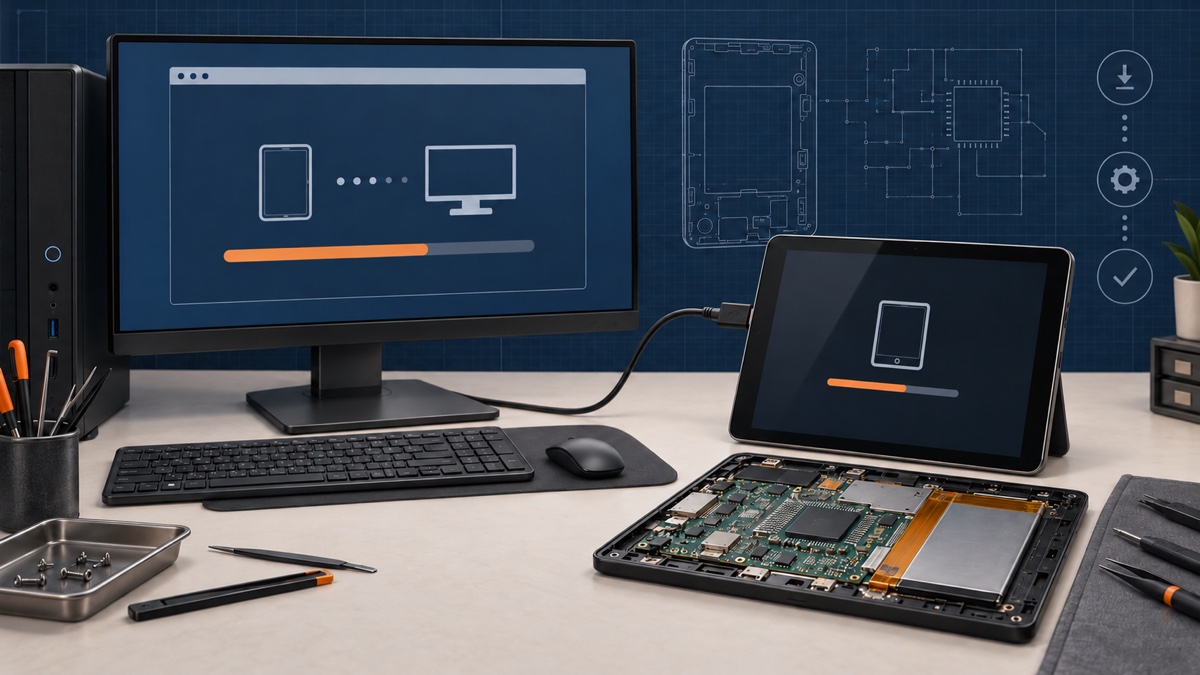
Key facts
- Use RKBatchTool or RKDevTool, install RockUSB drivers, enter Loader or Maskrom mode, and flash verified Rockchip firmware safely on Windows or Linux.
- Use RKBatchTool only when the exact OEM package or service instructions require it.
- Use RKDevTool when the current device or board documentation names RKDevTool and provides the matching files.
Rockchip Batch Tool, also called RKBatchTool, is a legacy Windows utility for writing a compatible Rockchip firmware package. It can still be the correct choice for an older tablet when the device manufacturer supplies that exact tool with an update.img file. For current boards and current vendor packages, the documented Windows utility is usually RKDevTool, while Linux and macOS users can use rkdeveloptool or the vendor SDK's upgrade_tool.
Before flashing: identify the exact finished device, board revision, storage type, and firmware package. A Rockchip chip number alone is not enough. A write can erase personal data and can leave the device unable to boot if the loader, partition layout, or image is wrong.
Quick answer: which Rockchip flashing tool should you use?
| Tool | Host system | Use it when | Do not assume |
|---|---|---|---|
| Rockchip Batch Tool / RKBatchTool | Windows | An older OEM firmware package explicitly includes or names it | Version 1.8 is not automatically correct for every Rockchip tablet |
| RKDevTool / AndroidTool | Windows | The board or device vendor provides an update.img, loader, or partition set for RKDevTool | A newer tool version does not make an unrelated image compatible |
upgrade_tool | Linux, sometimes supplied for other hosts | The vendor firmware package includes the matching SDK utility and instructions | Commands and partition names are identical across all boards |
rkdeveloptool | Linux and macOS | You need the open-source RockUSB command-line workflow and have the correct board loader and image | It can discover the right firmware or loader for you |
If your download contains a tool, driver, image, and instructions in one vendor package, keep those versions together. Firefly explicitly recommends using the upgrade tool packaged with its public firmware to avoid version-related flashing problems. Radxa likewise publishes board-specific loader files and instructions.
RKBatchTool 1.8 vs RKDevTool
Many searches still ask for Rockchip Batch Tool 1.8, RKBatchTool, or RK Batch Tool. That software belongs to an older generation of Windows flashing packages. Its basic workflow is familiar: load a unified firmware image, connect one device, confirm that a numbered status square changes color, then start the upgrade.
The problem is not that RKBatchTool is always unusable. The problem is treating a random copy of it as a universal Rockchip downloader. Tool builds, RockUSB drivers, loaders, image headers, storage layouts, and supported SoCs vary. Modern board documentation commonly uses RKDevTool, which exposes an Upgrade Firmware view for unified images and a Download Image or Write by Address view for selected partitions.
- Use RKBatchTool only when the exact OEM package or service instructions require it.
- Use RKDevTool when the current device or board documentation names RKDevTool and provides the matching files.
- Do not replace an OEM-supplied tool merely because another download has a higher version number.
- Do not download unsigned repacks from pages that cannot identify the original vendor, version, checksum, and supported hardware.
Before you connect the tablet or board
- Back up accessible data. Copy personal files and export any device-specific configuration you can still read. Treat a full firmware upgrade as destructive.
- Record the full product identity. Save the brand, exact model, PCB code and revision, SoC, RAM, storage capacity, current build number, and region.
- Keep the original package. Store the archive unchanged and record its source URL, file size, and SHA-256 checksum.
- Read the package instructions. Determine whether you have a unified
update.img, a complete raw disk image, or separate partition images. These workflows are not interchangeable. - Use stable hardware. Choose a short data-capable USB cable, a direct computer port, and the power supply specified for the board. Avoid hubs during diagnosis.
- Know the recovery path. Find the exact Loader or Maskrom entry procedure before writing anything. Button combinations and test points are product-specific.
Match the firmware to the exact Rockchip device
RK3188, RK3288, RK3328, RK3399, RK3566, RK3568, RK3588, and similar names identify the processor family, not the complete product. Two devices with the same SoC can use different memory initialization, storage, display panels, touch controllers, Wi-Fi chips, cameras, power management, and partition maps.
| Identifier | Where to find it | Why it matters |
|---|---|---|
| Finished model and revision | Rear label, box, About screen, service documentation | Primary firmware lookup key |
| PCB code | Printed on the mainboard | Separates devices sold under the same marketing name |
| RAM and storage | Specifications, Android settings, board markings | Can change loader and partition requirements |
| Current build | Android settings, recovery, vendor update screen | Helps identify the correct product software branch |
| USB hardware ID | Windows Device Manager, Details, Hardware Ids | Shows what Windows actually detects |
Do not select firmware only because the filename contains your processor number. Prefer the finished-device manufacturer or board vendor. If no official package exists, stop and obtain a verified backup from the same board revision before experimenting.
Install the RockUSB driver on Windows 10 or 11
Current Radxa and Firefly documentation uses Rockchip DriverAssistant for Windows and recommends removing an older conflicting driver before installing the supplied version. Use the DriverAssistant package linked by your board vendor or included with the firmware, not an unrelated driver bundle.
- Extract the complete trusted package to a short local path.
- If the vendor instructions require DriverAssistant, run
DriverInstall.exewith the privileges requested by that package. - If another RockUSB driver is already installed and detection is unreliable, use the vendor's uninstall option, restart if requested, then install the supplied driver.
- Connect the device in its documented Loader or Maskrom mode and open Device Manager.
- Look for Rockusb Device, an unknown USB device, or the entry that appears and disappears when the cable is reconnected.
- Open Properties, then Details, then Hardware Ids. Microsoft documents this as the direct way to see the USB vendor and product identifiers used for driver matching.
The open-source Rockchip rules and tools recognize USB vendor ID 2207 for RockUSB devices. Seeing VID_2207 is useful evidence that the device reached a Rockchip USB mode, but the product ID and operating state still vary by SoC and mode.
Loader mode and Maskrom mode
Rockchip devices normally expose one of two low-level USB states:
- Loader mode uses a valid bootloader already stored on the device. A working Android or Linux installation may enter it with
adb reboot loaderorreboot loader, if the product supports that command. - Maskrom mode is a lower-level recovery state used when the normal loader is missing or cannot run. It often requires a dedicated button, recovery pin, test point, or storage-specific procedure.
There is no universal volume-button combination for every Rockchip tablet. The old Ross&Moor example used one sequence, while current boards may use a Recovery or Maskrom button. Follow the hardware guide for the exact product. Shorting random pads or storage pins can damage the board.
RKDevTool should report a message such as Found One LOADER Device or Found One MASKROM Device. On Linux or macOS, run:
sudo rkdeveloptool ldA detected line normally shows the device number, a Vid=0x2207 value, a product ID, a location, and either Loader or Maskrom.
Flash a unified update.img on Windows
Use this workflow only when the vendor supplies a unified Rockchip update.img and explicitly supports the chosen RKDevTool or RKBatchTool version.
- Close Android management software and every other flashing tool that could claim the USB device.
- Open the vendor-supplied utility. Older packages may start
RKBatchTool.exe; current packages often startRKDevTool.exe. - Select the Upgrade Firmware page or the equivalent image selector.
- Choose the exact
update.img. Wait for the utility to display image information or confirm that the file loaded successfully. - Put the device into the documented Loader or Maskrom state. Confirm the expected device message or connection indicator.
- Review any erase, upgrade, restore, or storage choice. Use only the option named by the OEM instructions.
- Start the upgrade and do not disconnect USB, power, or the host computer.
- Wait for a clear success message and automatic reset. The first boot can take longer than a normal restart.
If RKBatchTool shows a colored connection square but refuses to load the firmware, the USB link is not necessarily the problem. The image may be damaged, packaged for another Rockchip tool, or incompatible with that utility version.
Flash separate partition images only with a verified map
RKDevTool can write a loader and selected images by address or partition. Firefly documentation describes a Download Image view where the user selects the device partition, confirms each image path, and presses Run. Radxa documentation similarly warns that compressed files must be extracted before writing.
This is an advanced workflow. The partition names, addresses, GPT layout, boot chain, storage target, and image format must come from the exact board package. Do not copy addresses from another RK3188, RK3399, RK3566, or RK3588 guide. Writing a correct file to the wrong address can overwrite the loader or partition table.
- Confirm whether the target is eMMC, SD, SPI NOR, NAND, or another device.
- Confirm whether the image is raw, sparse, packed, compressed, or a unified Rockchip image.
- Load only the partitions documented by the vendor package.
- Do not select EraseAll or switch storage as a generic troubleshooting step.
Use rkdeveloptool on Linux or macOS
The Rockchip open-source rkdeveloptool repository provides a command-line RockUSB workflow. Its README documents building against libusb and shows commands for listing a device, downloading a loader, writing an image, and resetting. Board vendors publish the exact loader and image combinations for their products.
# Confirm that exactly one intended Rockchip device is connected
sudo rkdeveloptool ld

# Load the exact board-specific loader supplied by the vendor
sudo rkdeveloptool db <board-loader.bin>

# Write a complete raw image at sector 0 only when the board guide says to do so
sudo rkdeveloptool wl 0 <verified-complete-image.img>

# Reset after a successful write
sudo rkdeveloptool rd
These placeholders are deliberate. Do not paste a loader filename or sector address from another product. The official tool also supports partition and erase operations, but those commands should be used only with a board-specific recovery plan.
Rockchip Batch Tool not detecting the device
| Observation | Likely area | Safe next check |
|---|---|---|
| Nothing changes in Device Manager | Cable, wrong USB port, no power, wrong button sequence | Use a known-good data cable and direct port, then repeat the product-specific entry sequence |
| Unknown USB device appears | Missing or mismatched RockUSB driver | Save Hardware Ids, then install the trusted vendor DriverAssistant package |
| Device appears briefly, then disappears | Unstable power, cable, normal short boot window, or the loader continuing to boot | Keep the tool open, use stable power, and repeat the documented timing once |
| Windows detects Rockusb Device, but the tool shows nothing | Tool or driver version conflict, another utility claiming the device | Close other tools and use the utility shipped with the firmware package |
| Loader is detected, but Maskrom instructions do not work | Product-specific hardware sequence | Use the exact service or board manual instead of a generic button combination |
Loading firmware failed and other common errors
| Message or symptom | What it can mean | What to do next |
|---|---|---|
| Loading firmware failed | Damaged archive, unsupported image format, wrong tool generation, incomplete extraction | Verify the source and checksum, extract the complete package, and use its matching tool |
| Download Boot Fail | Unstable cable or port, insufficient USB power, wrong loader, or incompatible SoC | Firefly recommends checking cable and USB port first; then confirm the exact loader |
| Test device failed | The device stopped responding after loader transfer or storage initialization | Save the full log, verify power and loader match, and stop repeated writes |
| Write fails at the same address | Storage fault, wrong layout, image corruption, or power instability | Do not keep erasing; verify the package and consider storage diagnosis |
| Upgrade succeeds, but the device has no display or touch | Firmware for another panel, touch controller, or board revision | Restore the exact hardware package; do not cycle through similar images |
| Tool freezes at zero percent | Driver handshake, wrong USB state, another process, or unsupported image | Check Device Manager and the log before changing any erase setting |
After the flash finishes
- Wait for the tool to report completion before disconnecting the cable.
- Allow several minutes for the first boot. A freshly written system may initialize storage and applications.
- Verify the model, build number, storage capacity, Wi-Fi, Bluetooth, display, touch, cameras, audio, charging, and sleep behavior.
- Keep the firmware archive, tool version, driver, checksum, and log together for recovery.
- If the device repeatedly resets, loses storage, or reports write failures, stop flashing and investigate power or storage hardware.
Frequently asked questions
Where can I download Rockchip Batch Tool 1.8?
Use the copy supplied by the finished-device manufacturer or included with its verified firmware package. RKBatchTool 1.8 is legacy software, and a random repack may include the wrong driver or modified executable. Current board vendors more often document RKDevTool and DriverAssistant.
Does Rockchip Batch Tool work on Windows 10 or 11?
Some legacy packages work after the matching RockUSB driver is installed, but compatibility depends on the tool build, driver signature, SoC, and firmware. Do not disable Windows security features for an unverified driver. Prefer the current instructions from the device vendor.
Are RKBatchTool and RKDevTool the same?
No. They are different generations and interfaces in the Rockchip flashing ecosystem. Both may handle unified firmware in supported packages, but their controls, versions, and device support differ.
Should I use Loader or Maskrom mode?
Use the mode specified by the board documentation. Loader mode is suitable when a valid loader runs. Maskrom is a lower-level recovery path for a missing or unusable loader and often needs a product-specific hardware action.
Can I flash firmware for another tablet with the same Rockchip processor?
No. The processor model does not identify the board, memory, storage, display, touch controller, wireless hardware, or partition layout. Use firmware for the exact finished device and revision.
Sources and scope
This guide was reviewed on October 13, 2026 against Radxa's RKDevTool and DriverAssistant documentation, Firefly's USB firmware upgrade guide, Rockchip's open-source rkdeveloptool repository and upgrade_tool documentation, and Microsoft's USB hardware-ID guidance. The exact device manufacturer's firmware, loader, power, cable, and recovery instructions take priority over this general guide.