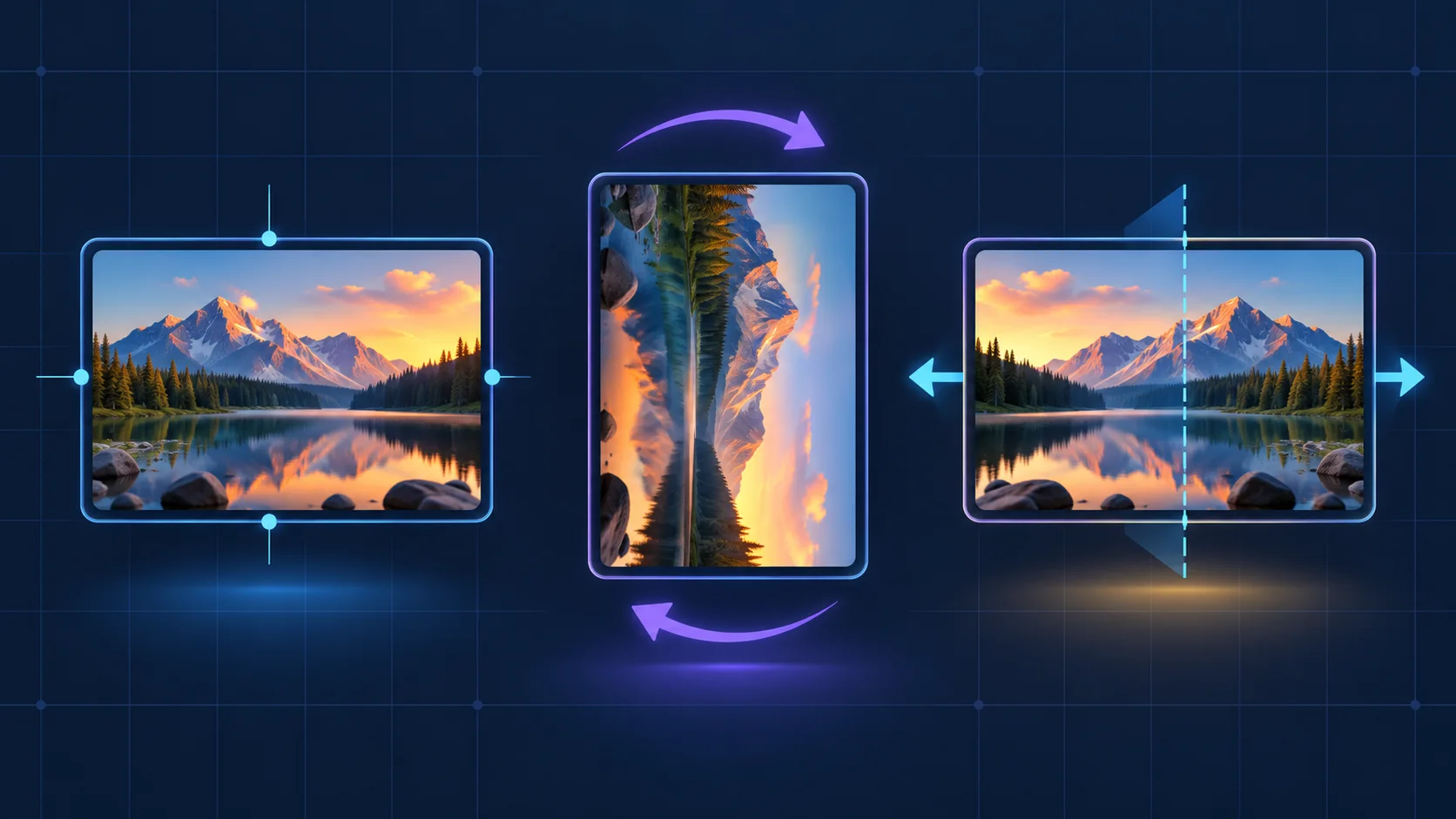
Key facts
- Use CSS transform with rotate() to turn an image and scaleX(-1) or scaleY(-1) to flip it without editing the source file.
- Use transform: rotate(90deg) to rotate an image clockwise by a quarter turn.
- Use transform: scaleX(-1) for a horizontal mirror or scaleY(-1) for a vertical mirror.
CSS can rotate or mirror an image without changing the original file. The same techniques work on icons, SVG elements, cards, and most other elements that participate in the CSS box model.
Quick answer
- Use
transform: rotate(90deg)to rotate an image clockwise by a quarter turn. - Use
transform: scaleX(-1)for a horizontal mirror orscaleY(-1)for a vertical mirror. - Put multiple transform functions in one declaration when you need to rotate and flip the same image.
.rotate-90 {
  transform: rotate(90deg);
}

.flip-horizontal {
  transform: scaleX(-1);
}

.flip-vertical {
  transform: scaleY(-1);
}
The transform property is widely supported in current browsers, so old vendor prefixes such as -moz-, -o-, and the Internet Explorer FlipH filter should not be added to modern code. MDN lists CSS transforms as broadly available across browsers.
Rotate an image with CSS
Apply rotate() to the image itself or to a class that you reuse on several images. A positive angle turns the image clockwise in a left-to-right document. A negative angle turns it counterclockwise.
<img class="photo rotate-90" src="mountain.jpg" alt="Mountain lake at sunset">.photo {
display: block;
max-width: 100%;
height: auto;
}
.rotate-90 {
transform: rotate(90deg);
}The angle can use deg, turn, rad, or grad. Degrees are usually the clearest choice for a quarter turn or a half turn.
Common rotation angles
| Result | CSS |
|---|---|
| 90 degrees clockwise | transform: rotate(90deg); |
| 90 degrees counterclockwise | transform: rotate(-90deg); |
| Upside down | transform: rotate(180deg); |
| Three-quarter turn | transform: rotate(270deg); |
| One complete turn | transform: rotate(1turn); |
The rotation happens around the element's transform origin. For ordinary HTML images, that point is the center by default.
Flip an image horizontally
A horizontal flip creates a mirror image from left to right. Scale the x-axis by -1:
.flip-horizontal {
  transform: scaleX(-1);
}
This is useful for direction arrows, decorative illustrations, and interface icons that need a reversed version. The image file is not duplicated or edited. The browser changes only how it is rendered.
Flip an image vertically
A vertical flip mirrors the image from top to bottom. Scale the y-axis by -1:
.flip-vertical {
  transform: scaleY(-1);
}
You can also flip both axes at once:
.flip-both {
  transform: scale(-1, -1);
}
Flipping both axes produces the same visual orientation as a 180 degree rotation, although the transformation matrix is expressed differently.
Rotate and flip the same image
Do not write two separate transform declarations on the same rule. The later declaration replaces the earlier one. Put every function in one transform list instead.
/* Correct: both operations are kept */
.rotate-and-flip {
  transform: rotate(90deg) scaleX(-1);
}

/* Incorrect: rotate() is overwritten */
.broken-example {
  transform: rotate(90deg);
  transform: scaleX(-1);
}
Why transform order matters
Transform functions are combined in the order written, and each function changes the coordinate system used by the next one. Because of that, rotate(90deg) translateX(20px) and translateX(20px) rotate(90deg) do not end in the same place.
.version-a {
  transform: rotate(90deg) translateX(20px);
}

.version-b {
  transform: translateX(20px) rotate(90deg);
}
If an image moves in an unexpected direction, reverse the function order or split the operations between a wrapper and the image. A wrapper is often easier to reason about when positioning and rotation must remain independent.
<div class="image-position">
  <img class="image-rotation" src="arrow.svg" alt="">
</div>
.image-position {
transform: translateX(20px);
}
.image-rotation {
transform: rotate(90deg);
}Change the rotation point
transform-origin sets the point around which an image rotates or scales. The default is 50% 50%, which is the center. Keywords and percentages make common pivot points easy to describe.
.rotate-from-center {
  transform-origin: center;
  transform: rotate(15deg);
}

.rotate-from-top-left {
  transform-origin: top left;
  transform: rotate(15deg);
}

.rotate-from-custom-point {
  transform-origin: 25% 75%;
  transform: rotate(15deg);
}
For an icon that should swing like a door, use an edge as the origin. For a dial or spinner, keep the origin at the visual center.
Rotation does not recalculate normal layout
A CSS transform changes the painted appearance of an element but does not make surrounding content reflow around its rotated shape. A wide landscape image rotated by 90 degrees may overlap nearby content or create overflow because its original layout box still keeps the unrotated width and height.
Use a wrapper when a rotated image needs reserved space:
<figure class="rotated-frame">
  <img src="portrait.jpg" alt="Portrait of a person outdoors">
</figure>
.rotated-frame {
display: grid;
place-items: center;
min-height: 22rem;
overflow: hidden;
}
.rotated-frame img {
max-width: min(100%, 22rem);
height: auto;
transform: rotate(90deg);
}Choose the wrapper height from the actual aspect ratio and the space available in your design. Avoid hiding overflow until you have checked that the crop is intentional.
Keep transformed images responsive
The usual responsive image rules still apply. Set max-width: 100% and height: auto so the intrinsic aspect ratio remains intact. If the image belongs inside a fixed card, use object-fit on the image and define the card dimensions separately.
.media-card {
  aspect-ratio: 4 / 3;
  overflow: hidden;
}

.media-card img {
  width: 100%;
  height: 100%;
  object-fit: cover;
  transform: scaleX(-1);
}
Test at narrow widths after rotating a non-square image. A 90 degree turn swaps the visual orientation, but it does not swap the CSS width and height used by layout.
Rotate on hover without making motion distracting
A transition can animate the change between the normal and transformed states. Keep interaction-driven movement short and offer a reduced-motion version for people who prefer less animation.
.turn-on-hover {
  transition: transform 200ms ease;
}

.turn-on-hover:hover,
.turn-on-hover:focus-visible {
  transform: rotate(8deg) scale(1.03);
}

@media (prefers-reduced-motion: reduce) {
  .turn-on-hover {
    transition: none;
  }
}
If the image is interactive, put it inside a real link or button and make the same state available with :focus-visible. Do not rely on hover alone for essential information.
Rotate SVG images and SVG elements
An SVG used through an <img> element can be transformed like any other image. Inline SVG elements also accept CSS transforms, but the reference box and default origin can differ from ordinary HTML elements. Set transform-box and transform-origin explicitly when an inline SVG rotates around an unexpected point.
.icon-arrow {
  transform-box: fill-box;
  transform-origin: center;
  transform: rotate(90deg);
}
Use an empty alt attribute for a purely decorative SVG image. If it communicates meaning, give it concise alternative text or an accessible name.
CSS rotation versus image orientation metadata
Phone and camera files can contain EXIF orientation metadata. If a photo appears sideways because that metadata was lost or processed incorrectly, CSS can hide the symptom on one page, but it does not repair the file. Correct the image during the upload or image-processing step when the orientation must be consistent everywhere.
Use CSS when rotation is part of the interface or design. Fix the source file when the pixels themselves have the wrong orientation.
Accessibility checks
Transforming an image does not change its alt text. Write alternative text for the image's meaning in its displayed context, not for the CSS technique used to render it.
- Do not mirror screenshots, diagrams, logos, or photos that contain readable text unless reversal is the intended message.
- Do not rotate long passages of text for decoration because they become harder to read and can be awkward at high zoom.
- Check focus outlines when transforming clickable images so the visible focus indicator still surrounds the control clearly.
- Avoid rapid or continuous spinning unless it is necessary, and respect
prefers-reduced-motion.
Troubleshooting
| Problem | Likely cause | Fix |
|---|---|---|
| The flip works but rotation disappears | A second transform declaration replaced the first |
Put both functions in one declaration |
| The image overlaps nearby content | Transforms do not recalculate normal flow | Reserve space with a wrapper and test overflow |
| The image rotates around the wrong point | The default origin is not suitable | Set transform-origin explicitly |
| Translation goes in an unexpected direction | Transform order changed the coordinate system | Reorder the functions or use nested elements |
| A rotated image is clipped | An ancestor uses overflow: hidden |
Increase the container or change overflow intentionally |
| An inline SVG uses an odd pivot | Its transform reference box differs from an HTML image | Set transform-box: fill-box and a clear origin |
Complete copy-and-paste example
This example keeps the image responsive, provides reusable modifier classes, and avoids browser-specific prefixes.
<figure class="image-demo">
  <img
    class="image-demo__photo is-rotated"
    src="mountain.jpg"
    alt="Mountain lake at sunset"
    width="1200"
    height="800"
  >
</figure>
.image-demo {
display: grid;
place-items: center;
overflow: hidden;
}
.image-demo__photo {
display: block;
max-width: 100%;
height: auto;
transform-origin: center;
}
.is-rotated {
transform: rotate(90deg);
}
.is-flipped-x {
transform: scaleX(-1);
}
.is-flipped-y {
transform: scaleY(-1);
}
.is-rotated-and-flipped {
transform: rotate(90deg) scaleX(-1);
}Frequently asked questions
How do I rotate an image 90 degrees in CSS?
Add transform: rotate(90deg) to the image. Use -90deg for the opposite direction in a left-to-right document.
How do I mirror an image without editing it?
Use transform: scaleX(-1) for a horizontal mirror or transform: scaleY(-1) for a vertical mirror.
Does CSS rotation reduce image quality?
CSS does not rewrite or recompress the source file. The browser rasterizes the transformed result for the current display. Images can look softer at unusual angles or fractional sizes, so inspect important graphics on the target devices.
Why does a 90 degree rotation not swap width and height?
The transform changes visual rendering after layout. The original unrotated box still participates in normal flow, so reserve enough space with a wrapper when the new visual orientation needs different dimensions.
Do I need vendor prefixes for CSS transforms?
No for normal support targets today. Use the standard transform property unless your project has an explicit requirement for an obsolete browser.